Screen Mirroring - Cast to TV
ZipoAppsVideo Players & Editors
4.34.37K Reviews
- Version
- 3.13.2
- Installs
- 50.00M
- Age Rating
- Everyone
Screenshots
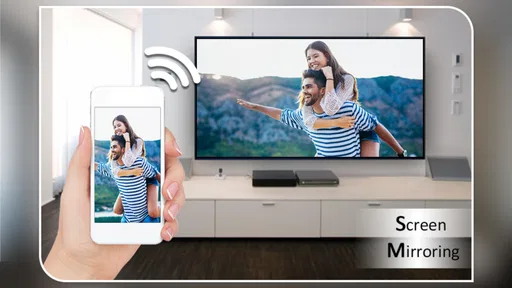
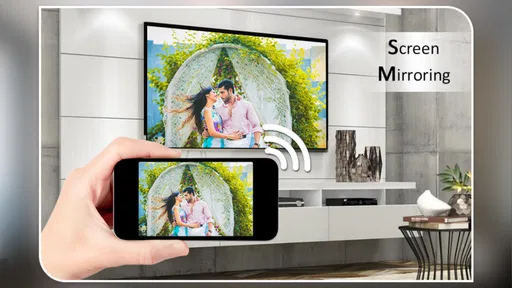
Our Review of Screen Mirroring - Cast to TV
 Analysis by Appyee
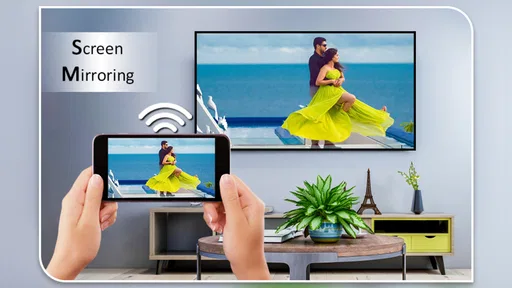
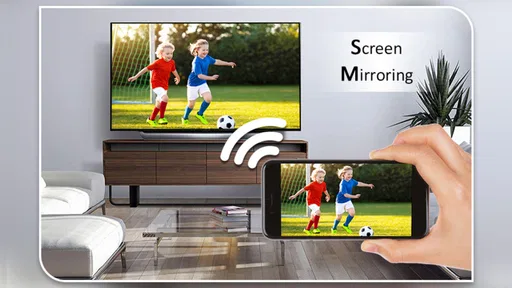
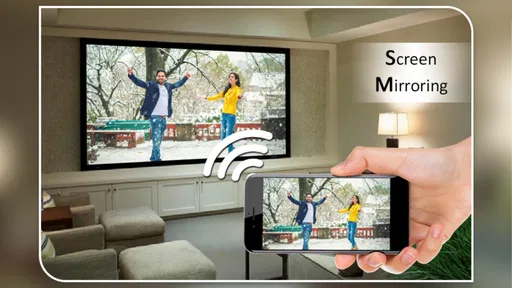
I find phone-to-TV mirroring most useful when it turns a personal screen into a shared one without making everyone crowd around me. Screen Mirroring - Cast to TV is built around that simple job: it lets you put phone content on a larger display. That sounds basic, but it changes the feel of sharing photos, clips, or a video with people in the same room. The main question is less whether mirroring is appealing and more whether this app suits the way you plan to use it.
Getting Started with Screen Mirroring - Cast to TV
First things first, setting up Screen Mirroring - Cast to TV is incredibly straightforward. I was pleasantly surprised by how user-friendly the interface is. After downloading the app, it guides you through connecting your device to your TV. You simply ensure both devices are on the same Wi-Fi network, and voilà! You’re ready to cast.
This app supports a wide range of TV models, and I found it particularly handy that it works with both Android and iOS devices. Whether you have a Samsung, LG, or a more obscure brand, chances are this app has got you covered. And let’s not forget about the compatibility with streaming devices like Chromecast and Roku. It’s all about versatility here!
Why mirroring is useful beyond watching a video
The biggest practical benefit is that the television becomes a shared view of whatever I’m showing from my phone. That makes this a different sort of tool from a conventional video player: rather than first finding a file in a TV app, I can use the phone as the place where I choose what the room sees. It suits spontaneous sharing, especially when someone asks to see a photo or a short clip and I don’t want to pass my phone around.
There is a trade-off in that convenience. Mirroring is a live connection, not simply a way to send a finished file to the television and put the phone away. I still need the phone nearby to select content and manage playback, and the experience depends on the connection between the devices. For a quick demonstration or a shared album, that is a fair exchange; for a long viewing session where I want the phone free for other things, a TV’s own playback app may be a better fit.
The User Experience: Smooth Sailing or Rough Waters?
Now, onto usability. I tested the app with a variety of media, from photos to videos, and even some apps like YouTube. For the most part, the streaming quality is excellent. Videos played smoothly with minimal lag, and the image quality remained crisp and clear. I was able to enjoy a movie night without any frustrating buffering or glitching.
However, I did notice a slight delay when mirroring certain apps. It’s not a deal-breaker, but if you’re planning to mirror apps that require real-time interaction, like gaming, this is something to keep in mind. For casual movie watching or photo slideshows, though, it’s perfect.
A useful routine for photos, clips, and groups
A realistic use is a family visit after a trip: I can connect before people arrive, open the pictures on my phone, and let everyone look at the same image instead of passing the handset from person to person. The order matters. I’d test the connection and select the first item before gathering everyone, because troubleshooting is much less awkward when nobody is waiting for the screen to appear. If the app has trouble finding the TV, restarting it—as the occasional recognition hiccup suggests—may be quicker than repeatedly tapping through the same discovery step.
For a group slideshow, the useful habit is to curate what you want to show before casting. A large camera roll is awkward to browse while everyone watches, and private notifications or unrelated screens can interrupt the shared moment if they appear during mirroring. I’d silence notifications or use the phone’s own focus controls where available, then keep the chosen photos ready. That is not a special feature of this app; it is a practical safeguard whenever a phone screen is being shown to a room.
It also helps to distinguish short clips from long-form viewing. A few videos chosen from the phone make sense when the group wants to see personal footage. For a film or a series that is already available in a TV app, opening it directly on the television can avoid leaving the phone tied up and may be more comfortable for extended watching. I see mirroring as a handy bridge between devices, rather than a replacement for every TV playback option.
Features That Stand Out
One of the standout features of this app is the ability to mirror in high definition. Whether it’s a 1080p video or a 4K photo, the app handles it with ease. I also appreciated the ability to control the volume and playback directly from my phone, making it super convenient to manage without constantly reaching for the TV remote.
Another cool feature is the ability to create playlists for your videos and photos. This means you can queue up a bunch of content and sit back while the app handles the rest. Perfect for those family gatherings where you want to relive vacation memories or showcase your latest photography escapades.
Choosing between mirroring and casting from a TV app
People often use “casting” and “screen mirroring” as if they mean exactly the same thing, but the choice affects how a session feels. With mirroring, the phone is central: I pick the content there, and the television follows what I’m displaying. With a native app on the TV, the television is doing the playback, so I can use the phone for something else once I have started the program. The first method is more flexible for content already on the handset; the second is usually simpler when the content is already offered by the TV’s own services.
Compared with relying on the phone’s built-in screen-sharing controls, a dedicated app can offer a more guided route to getting connected. That can be useful if I want a single place to start the process, but it also creates another app to open and another point where discovery can stumble. I would not install it just to duplicate a TV feature I already use easily. Its value is strongest when the built-in route is confusing or when I want a straightforward way to put assorted phone content on a larger screen.
One non-obvious trade-off is that a larger display makes small imperfections more noticeable. A photo that looks fine on a phone may reveal blur or compression when enlarged, and a weak wireless connection can make a smooth session less dependable. I’d choose the original, best-quality image or video when possible and keep the phone reasonably close to the network source. If the picture stutters, I’d first check whether other devices are heavily using the same Wi-Fi rather than assuming the TV itself is at fault.
Room for Improvement
While Screen Mirroring - Cast to TV is a solid app, it’s not without its quirks. Occasionally, I had to restart the app to get it to recognize my TV, which was a tad annoying. Also, some users might find the ads a bit intrusive, though they’re not overwhelming. There is an option for an ad-free version, which might be worth considering if you plan to use the app frequently.
Security-wise, the app ensures a safe connection between your devices, which is always a plus. However, as with any app, it’s wise to ensure your network is secure to prevent any unwelcome guests on your screen.
That occasional discovery problem is worth thinking about before choosing it for an important presentation or a tightly timed gathering. I would not count on a new setup working flawlessly at the exact moment I need it; I’d connect once in advance and keep a backup plan, such as showing the content directly on the phone or using a TV’s own app. For casual home use, the extra preparation is minor. For a work meeting where timing and predictable controls matter, a wired connection or a setup already tested in that room may be the safer choice.
On cost, the app is free to start, with in-app purchases listed from $0.99 to $149.99 per item. I would try the basic experience before paying for anything, especially if my use is occasional. The advertised ad-free option may appeal to someone who mirrors often, but I’d weigh that convenience against how frequently the ads actually interrupt my routine. I would not assume that paying for an option solves connection issues; the app’s device discovery and the home network remain separate considerations.
Who is most likely to benefit
I’d recommend this kind of tool to someone who regularly shares phone photos and videos with family, hosts casual get-togethers, or wants an easy way to show something on a compatible television without transferring files first. It is also appealing for people who find a TV’s menus cumbersome and prefer choosing content on a familiar phone screen. ZipoApps is the developer, and the app sits in the video players and editors space, though its practical role is more about getting phone content onto a larger display than editing it.
It is less compelling for competitive mobile gaming, precise live demonstrations, or anyone who needs a guaranteed, low-latency connection. The slight delay I encountered is precisely the kind of friction that can spoil a task where timing matters. I’d also skip it if I only want to watch mainstream streaming services that already have reliable apps on my television. In that case, going directly to the TV app is simpler and leaves the phone available.
For a reader deciding whether to try it, the key question is what you want the phone to contribute. If the content starts on the phone and is meant to be shared spontaneously, mirroring can save time and make the experience more social. If the content starts on a streaming service, or if you need fast interaction and dependable responsiveness, another route is likely more comfortable. A quick test with a photo and a short clip is a sensible way to see whether your particular phone, TV, and network work well together before relying on it for a bigger occasion.
Final Thoughts: Is It Worth It?
All in all, Screen Mirroring - Cast to TV is a reliable choice for anyone looking to easily share their phone’s content on the big screen. It’s user-friendly, versatile, and, for the most part, delivers a seamless experience. Whether you’re showing off photos, streaming videos, or just want to enjoy your apps on a bigger display, this app is a great companion. Just be prepared for a few minor hiccups along the way.
It is a free app for everyone, with a 4.3 average from around 286,000 ratings and over 50 million installs. It first appeared on July 5, 2018, and version 3.13.2 runs on Android 5.0 and newer. Those figures suggest a widely used option, but they don’t tell me whether it will behave equally well with every television and Wi-Fi setup. I’d treat compatibility as something to try at home, not as a reason to expect every connection to be effortless.
Ready to give it a shot? You can find it available for download on both Android and iOS platforms. Happy casting!
Verdict
Strengths of Screen Mirroring - Cast to TV
- Easy setup with intuitive interface.
- Supports multiple device connections.
- High-resolution streaming quality.
- Compatible with most smart TVs.
- No noticeable lag during mirroring.
Limitations of Screen Mirroring - Cast to TV
- Contains ads that disrupt usage.
- Limited features in free version.
- Occasional connectivity issues.
- Requires strong Wi-Fi signal.
- Not compatible with older TVs.
Other Releases by ZipoApps
View All
Cut and Paste Photos
Photography4.6

Edge Lighting - Borderlight
Personalization4.8

Widgets OS 18 - Color Widgets
Personalization4.7

TIME WARP SCAN: Face Scanner
Photography4.6
Similar Picks in This Category
View All
Google TV
Google LLC3.9

iTunes
Apple4.7

YouTube
Google LLC3.8

MX Player
Amazon Mobile LLC4.2

CapCut - Video Editor
Bytedance Pte. Ltd.3.5

PLAYit-All in One Video Player
PLAYIT TECHNOLOGY PTE. LTD.4.5
Frequently Asked Questions
What devices are compatible with Screen Mirroring - Cast to TV?
Screen Mirroring - Cast to TV supports a wide range of devices including Android and iOS smartphones and tablets. It is compatible with smart TVs from major brands such as Samsung, LG, Sony, and others. Additionally, it supports devices like Chromecast and Amazon Fire Stick, making it versatile for various setups.
Do I need an internet connection to use Screen Mirroring - Cast to TV?
Yes, an internet connection is typically required to use Screen Mirroring - Cast to TV, especially if you are streaming online content. However, for mirroring local content from your device, a direct Wi-Fi connection between your device and the TV may suffice. Ensure both devices are on the same network for optimal performance.
Is there a delay or lag when using the app?
Users may experience minimal delay or lag depending on the network strength and device compatibility. For the best experience, ensure that your devices are connected to a stable and fast Wi-Fi network. Lowering the resolution of the mirrored content can also help reduce any potential latency issues.
Are there any subscription fees or in-app purchases?
Screen Mirroring - Cast to TV is generally free to download with basic features. However, it may offer in-app purchases or a subscription model to access premium features such as ad-free usage, higher resolution support, or additional casting options. Check the app store listing for specific pricing details.
How secure is Screen Mirroring - Cast to TV?
The app uses secure connections to ensure that your data and streamed content remain private. Always download the app from official app stores to avoid security risks. Additionally, keep your app updated to the latest version to benefit from security patches and feature improvements.
